Globus
Globus is an easy way to reliably and securly move, share, and discover data no matter where it lives.
Get starting with Globus by folloiwnig this guide.
Login
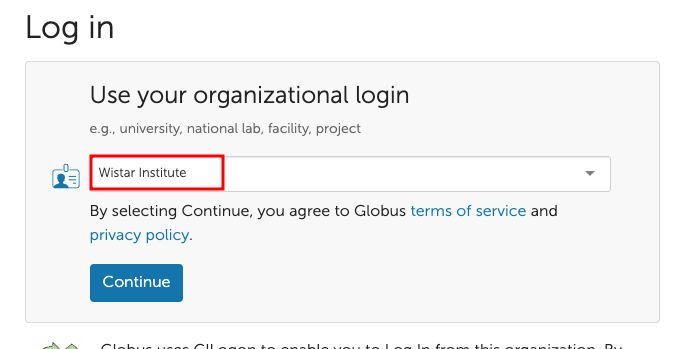
Wistar is federated with Globus and users can login by search for "Wistar Institute". It will redirect you to the standard Microsoft login, here you will input your @wistar.org credentials.
Wistar Collection
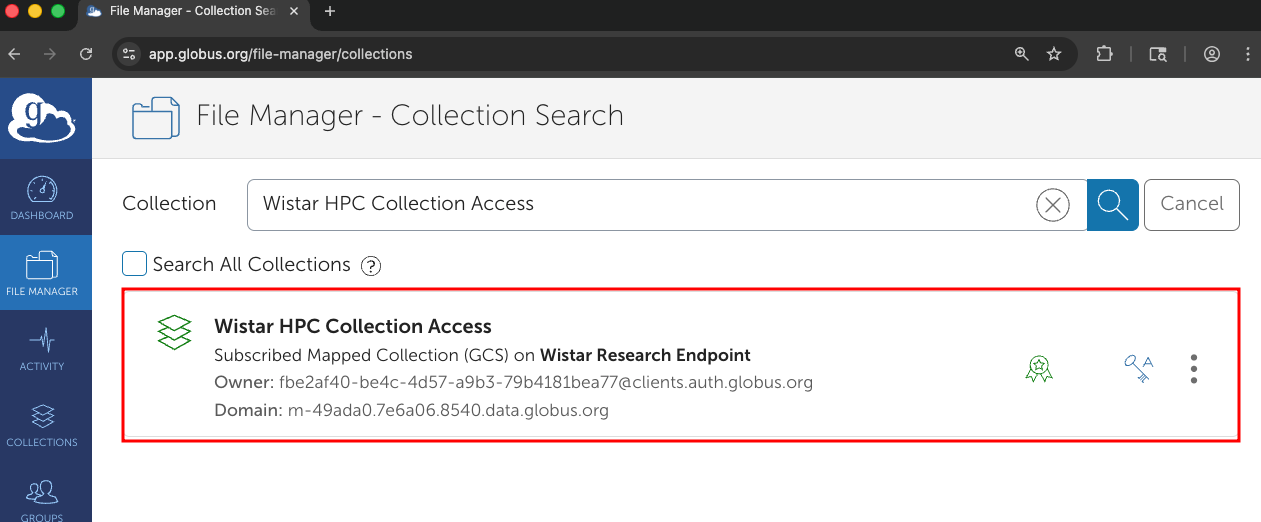
Wistar has a "mapped collection" that will mirror your network share. This mapped collection can be found by searching for "Wistar HPC Collection Access".
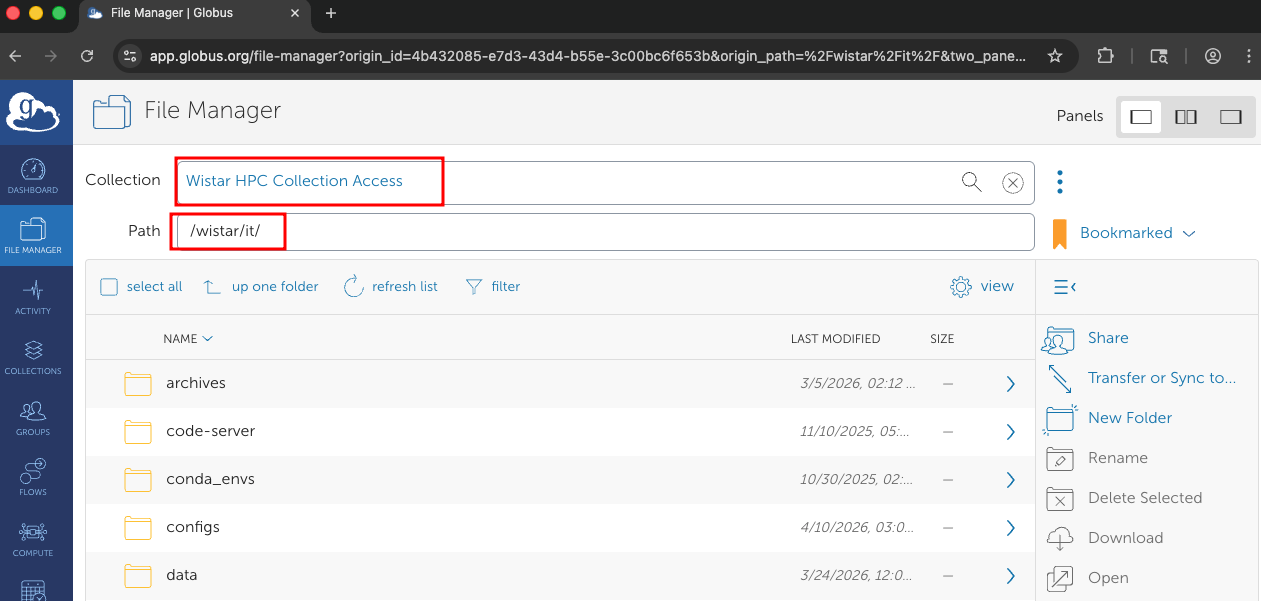
From here, you will be able to navigate to your network share in the file manager (given you have access to it).
Personal Collection
You can create a personal collection by using the Globus Connect Personal software. It is available via a module, here is how to setup your personal collection.
Load the module and perform the setup command
module load globusconnectpersonal
globusconnectpersonal -setup
It then will output the following:
Starting CLI interactive setup

For advanced configuration or High Assurance options, cancel and review
  globusconnectpersonal -setup --help

Globus Connect Personal needs you to log in to continue the setup process.

We will display a login URL. Copy it into any browser and log in to get a
single-use code. Return to this command with the code to continue setup.

Login here:
-----
https://auth.globus.org/v2/oauth2/authorize?client_id=<LONG_STRING>
-----
-
Take that long URL and input it into your browser
-
Login with your wistar.org account (if you have not already done so)
-
Give your personal collection a remember-able name
-
It then will show an
auth code, paste that back into your terminal -
Start the
globusconnectpersonalapplication
globusconnectpersonal -start &
Tip
The & at the end starts the process in the background
You are all setup! You can now view your personal collection by going to Collections -> Administered By You in the Globus Web UI
Warning
If you logout of the wi-hpc cluster, the collection will not be available. You must be logged in and the globusconnectpersonal service must be running. It is best practice to stop the process with globusconnectpersonal -stop when you are done using it.
Related Articles
See our knowledge base articles for more details on how to use Globus effectively.